레이블이 How-To Geek인 게시물을 표시합니다. 모든 게시물 표시

2010년 4월 15일 목요일

[Windows] 시스템 종료, 재시작, 잠금 단축아이콘 만들기

다음 그림과 같이 단축 아이콘을 만듭니다. (예: '시스템 재시작' 단축 아이콘)


image2


다음은 단축 아이콘 만들 때 입력하는 명령어들입니다.


시스템 종료

         Shutdown.exe -s -t 00


시스템 바로 재시작

         Shutdown.exe -r -t 00


시스템 잠금

         Rundll32.exe User32.dll,LockWorkStation


최대절전모드(Hibernate)

         Rundll32.exe PowrProf.dll,SetSuspendState


대기모드(Standby)

         Rundll32.exe PowrProf.dll,SetSuspendState 0,1,0


shutdown.exe 명령어에서 -t 옵션은 명령 실행 시작 대기 시간을 초 단위로 지정합니다.

2010년 3월 5일 금요일

Win7에서 GPS 없이 '위치 및 기타 센스 사용' 활용하기

 GPS enabled smartphones make it easy to get directions, weather, and many more location based services since they automatically know where you are.  With Geosense, you can bring this functionality to any Windows 7 computer even if it doesn’t have a GPS chip.


 Windows 7 introduced the new Sensors and Location platform that would let Windows automatically respond to environmental changes sensed by light, orientation sensors, or GPS chips.  This makes your computer more aware of its surroundings and change itself accordingly.  The location platform is especially interesting, as it brings the potential of automatic location based search and maps to your PC.  Unfortunately, most laptops today are not equipped with GPS chips.  Thanks to Geosense, however, you can still use the location platform.


 Geosense uses IP lookup, WiFi and Cell tower triangulation, and more to find your location as accurately as possible.  Geosense lists itself as a sensor in the Windows Sensors and Locations, so once you’ve installed it, all location-aware applications and services will be able to pickup your location from it.  Please note that Geosense only works on Windows 7 Home Premium and higher, as Windows 7 Starter doesn’t include the Sensors and Locations platform.


Getting Started:

Geosense is a free download for Windows 7, with both 32 and 64 bit editions.  Choose the correct one for your computer, and install.

sshot-367

While installing, it will ask to install a device driver.  Simply press Install.  You may also see a UAC prompt, which you should accept as well.

sshot-2010-03-02-[21-17-31]

When it is finished installing, you are ready to use Geosense.  First, lets make sure Geosense is enabled.  Enter “Location” in your Start Menu search, and select “Location and Other Sensors”.

sshot-2010-03-02-[21-28-48]

Here you should see Geosense listed as a sensor.  If it is not enabled, click the check box beside it and click Apply.

sshot-2010-03-02-[21-30-14]

You can see more information about Geosense if you click its name.  This page lets you change the description, choose which users can use this sensor, and uninstall it if you choose.

sshot-2010-03-02-[21-32-33]


Using Geosense

There are few applications today that make use of the Location platform in Windows 7, but hopefully we will see more in the near future.  The weather desktop gadget, however, is location aware, so you can easily test out your Geosense location with it.  Once Geosense is installed, you will notice a grey logo beside your city’s name on the gadget that shows that a sensor is available.

image

Click on the gear to open the options pane.  Here you can now select “Find location automatically” and it will display the weather for the location detected by Geosense.

 image

Now your gadget should show a blue icon beside the city name, showing that the location is coming from your location sensor.

image

Unfortunately, sometimes Geosense cannot detect your location. If so, you will either see an entirely incorrect city (Seattle, WA is the default city, and usually is “detected” if Geosense fails to detect your location), or will show a red icon showing that it cannot detect your correct location.

image


Location-aware Google Maps

Another location aware application is a Google Maps app available from the Geosense site (link below).  This will automatically open a Google map at your current location, so you can easily search for directions and nearby businesses.  This could be very useful at a hotspot in a new city, for instance.  Once again, though, if it cannot detect your location, it may simply show a default location or a generic Google maps.


Link:

Download Geosense for Windows 7 and the Location-Enabled Google Maps Client

내 컴퓨터의 위치 정보를 가져다 주는 Geosense for Windows를 사용해 보세요

2010년 2월 12일 금요일

Windows Update가 자동으로 시스템 재시작하는 것 막기

 XP, Vista, Win7 등을 사용하면서 겪는 귀찮고 황당한 것들 중에서, Windows 업데이트 설치 후 10분 뒤 시스템 재시작한다는 메시지와, 밤새 어떤 작업을 걸어놓은 PC가 다음 날 아침에 깨끗하게 재시작되어 있다는 것입니다.


 중요 업데이트 중에서 시스템 재시작을 요구하는 것들이 있는데, 이러한 업데이트들이 설치되었을 때 나타나는 현상입니다.


 보통 윈도우를 설치할 때, 윈도우가 권장하는 보안 및 업데이트 설정을 선택하게 됩니다. 새로운 업데이트가 있으면 자동으로 설치할 업데이트가 있다는 것을 알리는 것이며, 이를 설치하지 않으면 새벽 3시에 업데이트를 설치한다는 것이 기본 설정입니다. 이후에도 업데이트가 설치되지 않고 계속 미뤄지면 어느 순간 자동으로 업데이트가 설치되고, 10분 뒤에 시스템을 재시작한다는 메시지가 계속 나타나게 됩니다. 시스템을 재시작 할 수 없는 상황이라면 4시간 뒤에 재시작으로 설정을 변경할 수 밖에 없습니다.


 가끔 황당한 사건은 설치할 업데이트가 있다는 메시지가 나타났던 날 공교롭게도 장시간 다운로드 시간을 요하는 작업을 걸어 놓았을 때 입니다. 다음 날 아침에 놀라는 일이 생기죠!!! 이 때 시스템을 재시작 시킨 범인이 누구인지 보면, 대부분은 새벽 3시에 설치된 윈도우 업데이트들 때문입니다.  


 다음은 이러한 자동 재시작을 막는 2가지 방법입니다.


image


1. 수동으로 레지스터리 값 변경하기


HKEY_LOCAL_MACHINE\SOFTWARE\Policies\Microsoft\Windows\WindowsUpdate\AU

image

 32-bit DWORD 형식으로 NoAutoRebootWithLoggedOnUsers 설정을 만들어 여기의 값을 1로 설정하는 것입니다. 이 레지스터리 설정 추가를 자동으로 실행할 수 있는 스크립트는 다음 링크에서 다운로드 가능합니다.


Download WUNoAutoReboot Registry Hack


2. Auto Reboot Remover 유틸리티 사용


 다음과 같은 유틸리티 툴을 다운로드 받아 사용하는 방법도 있습니다.

image

Download Auto Reboot Remover from Intelliadmin


[출처: How-To Geek:Prevent Windows Update from Forcibly Rebooting Your Computer ]


2010년 2월 11일 목요일

Win7에서 프로그램을 호환성 모드로 시작하기

출처: How-To Geek Using Program Compatibility Mode in Windows 7


Program Compatibility Assistant

Program Compatibility is a mode that allows you to run programs that were written for earlier versions of Windows. The Program Compatibility Assistant detects compatibility issues and allows you to reinstall using the recommended settings. For example we got this error trying to install a music interface device driver for home recording.

2comp 

After we closed out of the error, the Program Compatibility Assistant came up advising that the program didn’t install correctly. To try to install it again, select Reinstall using recommended settings.

3comp

The Compatibility Assistant went through and fixed the issue and we were able to install the driver. The problem was the driver was designed for Vista and the the assistant automatically select the correct compatibility mode for us to install it.

4comp

Sometimes you might get a screen similar to this example where Virtual PC 2007 isn’t compatible with Windows 7 and you can check for solutions online.

18comp

After checking for solutions online, we’re shown that there is an update that might solve the issue.

20comp

Which points us to the Microsoft site to download Virtual PC 2007 SP1.

21comp

Note: If you’re an Admin and tired of seeing it pop up because you know what you’re doing, check out our article on how to disable program compatibility assistant in Windows 7 and Vista.

6comp

Program Compatibility Troubleshooter

There might be times when Program Compatibility Assistant can’t find a solution, or a program installs fine, but doesn’t work the way it should. In that case you’ll need to troubleshoot the issue. Right-click on the program icon from the Start Menu or in many programs the shortcut icon and select Troubleshoot compatibility.

7comp

Windows will detect any issues with the program and you can try to run it with the recommended settings, or go through the troubleshooting wizard. For this part of our example we’ll select Try recommended settings.

8comp

This option allows us to test run the program to see if the new compatibility settings fix the issue. Click on Start the program to begin testing it out. After testing the program and determining if the settings work or not click on Next.

9comp

If the program is running correctly you can save the settings and it will continue to run with those settings. If it didn’t work properly, you can try using different settings or report the problem to Microsoft and check for an online solution.

10comp

If you selected No, try again using different settings it will bring up the troubleshooter where you can specify the issues you’re having with the program.

11comp

Depending what you check in the screen above, you’ll be presented with other options for what is not working correctly. Where in this example it shows different display problems.

12comp

New settings are applied to the program and you can try running it again.

13comp 

If none of the compatibility settings work for the program, you’re prompted to to send a generated problem report to Microsoft.

14comp

Manually Select Compatibility

Of course if you don’t want to deal with the Program Compatibility troubleshooter, you can go in and manually select Compatibility Mode. Right-click the program icon and select Properties.

16comp

Then click the Compatibility tab then check the box Run this program in compatibility for and select the version of Windows from the dropdown. Now it will always run the program in Compatibility Mode for the version of Windows you selected.

17comp


2010년 2월 5일 금요일

실행되어 있는 모든 프로그램들을 한꺼번에 닫기


NTWind Software에서 만든 Utility 프로그램으로 설치할 필요없이, 프로그램을 실행하면 현재 실행 중인 모든 프로그램들을 한꺼번에 종료시킬 수 있는 tool입니다. 첨부된 ZIP 압축 파일을 다운로드 받아 풀고, CloseAll.exe를 실행하기만 하면 됩니다.


1 close


2010년 2월 2일 화요일

Share and Stream Digital Media Between Windows 7 Machines On Your Home Network

One of the cool new features in Windows 7 is the ability to stream digital media to different computers throughout your house. Here we will show you how to set up Windows Media Player in Windows 7 to share and stream videos, music, and other digital media to Windows 7 machines.

To stream video to another computer on your home network they will all need to be running Windows 7 with Windows Media Player 12. In our example we will stream video from a computer running Windows 7 Ultimate (64-bit) to another machine running Windows 7 Home Premium (32-bit) which are part of the same Homegroup.

Setup Streaming

The first thing you’ll want to do is turn on media streaming. Type media streaming into the search box in the Start menu and select Media streaming options.

1stream

Now select your media streaming options. Choose a name for the media library, and make sure all the computers on your network you want to have access are allowed. If both computers are part of a Homegroup, everything is shared by default anyway, but you might want to double check. Or you might want to block certain computers from the streaming options.

6stream

You can also choose some custom settings if you want. For instance, maybe you want certain computers to only have access to music or certain files with a particular rating. For this demonstration we are opening everything up, but if you want to control what other users access, keep these settings in mind.

7stream

Now open up Windows Media Player and in Library view click on Stream and check Automatically allow devices to play my media.

8stream 

To be able to play content on one machine over to another we need to enable Allow remote control of my Player. This makes it so your computer is a remote control of sorts.

9strram

Then click Allow remote control on this network when the dialog box comes up.

10stream

Because we are making everything wide open to all computers, we need to enable the above settings on both computers. If you have multiple computers on your network you can set them all up to share their libraries too. Now when you go into Windows Media Player under the Library view you’ll see Other Libraries and will see the other computers on your network.

15stream 

Stream To a Machine

Now comes the cool part…playing video or music from the library of one machine to another machine. Make sure the machine you want to play the media to has WMP up and running. Right-click a media file and select Play to from the context menu and select the machine to play it to. In this example we only have one other machine to choose from, and playing an X-files episode from the library in WMP.

16stream

Then you’ll see the Play To controller with the media listed. From here you can control the playback and volume.

11stream

Then the video starts playing through WMP on the other machine.

12stream

You aren’t just limited to playing digital media from WMP either. Here we’re in a video directory where we have season 2 of Star Trek DS9. Select the episodes to play, right-click and Play To…

17stream

Playing music files to another machine…

18stream

Pictures too…

19stream

Again from the Play To control you can switch the order of the files and skip to others.

147stream

You can simply drag and drop other files that you want to add into it as well.

13stream

Conclusion

This is a great way to play your digital files from one location to another. You might have a bunch of movies or music on a laptop in your bedroom, and want to play them to your media center in the living room. The combinations are essentially limitless. Playback on other machines is generally smooth provided you have a decent home network with Gigabit speed,which most new routers and machines are capable of. You can definitely stream video over a wireless connection, but make sure it’s a fast connection. If wireless speeds are too slow…setup computers on the network wired with CAT5e cable wherever possible.

2010년 1월 30일 토요일

Win7에서 서로 다른 네트워크 연결을 Bridge 하는 방법

Windows 7은 서로 다른 유형의 네트워크를 연결하거나 Bridge 시키는 기능을 제공합니다.


예를 들어 노트북 PC에 유선 LAN과 무선 LAN을 장치 모두를 제공하는데, 유선 LAN도 케이블로 연결하여 인터넷 접속이 가능하고 무선 LAN도 인터넷 연결이 가능한 상황에서,

만약 유선 LAN이 연결된 네트워크 망과 무선 LAN이 연결된 네트워크 망이 서로 다를 경우,

이들 다른  2개의 네트워크 연결을 서로 Bridge 시킬 수 있다,


다음은 2개의 서로 다른 네트워크 연결을 Bridge 시키는 방법이다.


To bridge connections, go to  Control Panel then click Network and Sharing Center.  At this window, click Change adapter settings:

image


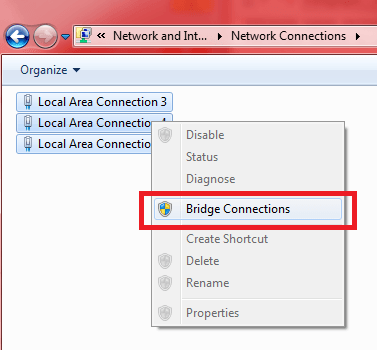
Select the adapters that you want to bridge then select bridge connections:

image

That’s it! You should be able to network the two networks together.


[주의 사항]

Take note that for security purposes, you shouldn’t create a bridge between an Internet connection and a network connection because it creates an unprotected link between your network and the Internet, which makes your network accessible to anyone on the Internet.


[이상적인 사용 시나리오]

People with home or small office networks typically use a bridge when they have different types of networks, but they want to exchange information or share files with all of the computers on those networks.  The easiest way to do this without having to buy hardware is by using the network bridging in Windows 7.


[출처: How-To Geek Bridge Network Connections in Windows 7]