| Open the door of J: CD-ROM drive
| nircmd.exe cdrom open j:
|
| Close the door of Y: CD-ROM drive
| nircmd.exe cdrom close y:
|
| Speaks the text currently in the clipboard (For Windows XP and Vista).
| nircmd.exe speak text ~$clipboard$
|
| Increase the system volume by 2000 units (out of 65535)
| nircmd.exe changesysvolume 2000
|
| Decrease the system volume by 5000 units (out of 65535)
| nircmd.exe changesysvolume -5000
|
| Set the volume to the highest value
| nircmd.exe setsysvolume 65535
|
| Mute the system volume
| nircmd.exe mutesysvolume 1
|
| Unmute the system volume
| nircmd.exe mutesysvolume 0
|
| Switch the system volume between the mute and normal state.
| nircmd.exe mutesysvolume 2
|
| Create a shortcut on your desktop that switch the system volume between the mute and normal state.
| nircmd.exe cmdshortcut "~$folder.desktop$" "Switch Volume" mutesysvolume 2
|
| Turn off the monitor
| nircmd.exe monitor off
|
| Start the default screen saver
| nircmd.exe screensaver
|
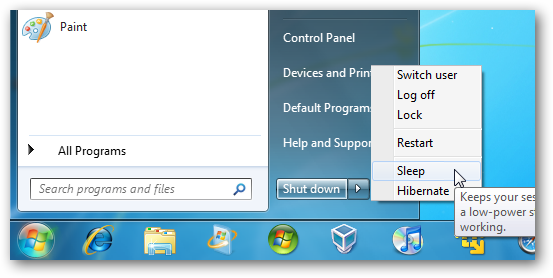
| Put your computer in 'standby' mode
| nircmd.exe standby
|
| log off the current user
| nircmd.exe exitwin logoff
|
| Ask if you want to reboot, and if you answer 'Yes', reboot the computer.
| nircmd.exe qboxcom "Do you want to reboot ?" "question" exitwin reboot
|
| Turn off your computer
| nircmd.exe exitwin poweroff
|
| Turn off all computers specified in computers.txt !
| nircmd.exe multiremote copy "c:\temp\computers.txt" exitwin poweroff force
|
| Dial to "My Internet" connection
| nircmd.exe rasdial "My Internet"
|
| Disconnect the "My Internet" connection
| nircmd.exe rashangup "My Internet"
|
| Make your Internet Explorer windows 75% transparent ! (192 / 256)
| nircmd.exe win trans ititle "internet explorer" 192
|
| Minimize all your Internet Explorer windows
| nircmd.exe win min class "IEFrame"
|
| Close all your Internet Explorer windows
| nircmd.exe win close class "IEFrame"
|
| Close all your Explorer windows (My Computer, folders, and so on)
| nircmd.exe win close class "CabinetWClass"
|
| Hide all your Internet Explorer windows
| nircmd.exe win hide class "IEFrame"
|
| Show all your Internet Explorer windows (after you made them hidden with previous example)
| nircmd.exe win show class "IEFrame"
|
| Center all top-level windows
| nircmd.exe win center alltop
|
| Remove the title bar of My Computer window.
| nircmd.exe win -style title "my computer" 0x00C00000
|
| Return the title bar of My Computer window that we removed in the previous example.
| nircmd.exe win +style title "my computer" 0x00C00000
|
| Set the My Computer window to right-to-left order (For hebrew and arabic languages)
| nircmd win +exstyle title "my computer" 0x00400000
|
| Set all child windows of My Computer window to right-to-left order (For hebrew and arabic languages)
| nircmd win child title "my computer" +exstyle all 0x00400000
|
| Create a shortcut on your desktop that closes all your Internet Explorer windows
| nircmd.exe cmdshortcut " "~$folder.desktop$ "Close All IE" win close class "IEFrame"
|
| Create a shortcut on your desktop that hides all your Internet Explorer windows
| nircmd.exe cmdshortcut " "~$folder.desktop$ "Hide All IE" win hide class "IEFrame"
|
| Create a shortcut on your desktop that shows back all your Internet Explorer windows
| nircmd.exe cmdshortcut " "~$folder.desktop$ "Show All IE" win show class "IEFrame"
|
| Set the Windows Calculator as top-most window (above all other windows)
| nircmd.exe win settopmost title "Calculator" 1
|
| Set the Windows Calculator back to regular window (non top-most window)
| nircmd.exe win settopmost title "Calculator" 0
|
| Create a shortcut to Windows calculator under Start Menu->Programs->Calculators
| nircmd.exe shortcut "f:\winnt\system32\calc.exe" "~$folder.programs$\Calculators" "Windows Calculator"
|
| Hide the desktop window
| nircmd.exe win hide class progman
|
| Show the desktop window (After hiding it in previous example)
| nircmd.exe win show class progman
|
| Hide the start button on the system tray
| nircmd.exe win child class "Shell_TrayWnd" hide class "button"
|
| Show the start button on the system tray
| nircmd.exe win child class "Shell_TrayWnd" show class "button"
|
| Hide the clock on the system tray
| nircmd.exe win child class "Shell_TrayWnd" hide class "TrayClockWClass"
|
| Show the clock on the system tray
| nircmd.exe win child class "Shell_TrayWnd" show class "TrayClockWClass"
|
| Kill (terminate) all instance of Internet Explorer processes
| nircmd.exe killprocess iexplore.exe
|
| Create a shortcut on your desktop that opens the door of K: CDROM drive when you run it.
| nircmd.exe cmdshortcut "~$folder.desktop$" "Open CDROM" cdrom open k:
|
| Create a shortcut to NirSoft Web site on your desktop
| nircmd.exe urlshortcut "http://www.nirsoft.net" "~$folder.desktop$" "NirSoft"
|
| Add NirSoft Web site to your Favorities under Links folder.
| nircmd.exe urlshortcut "http://www.nirsoft.net" "~$folder.favorites$\Links" "NirSoft"
|
| Create a shortcut to NirSoft Web site on the desktop of all computers listed in computers.txt
| nircmd.exe multiremote copy "c:\temp\computers.txt" urlshortcut "http://www.nirsoft.net" "~$folder.common_desktop$" "NirSoft"
|
| Set the display mode to 800x600x24bit colors
| nircmd.exe setdisplay 800 600 24
|
| Create a shortcut on the desktop that set the display mode to 800x600x24bit colors
| nircmd.exe cmdshortcut "~$folder.desktop$" "800x600x24" setdisplay 800 600 24
|
| Copy all shortcuts on your desktop to another folder (f:\temp\desktop).
| nircmd.exe execmd copy "~$folder.desktop$\*.lnk" f:\temp\desktop
|
| Restart your Apache server (under Windows NT/2000/XP/2003)
| nircmd.exe service restart apache
|
| Create a shortcut on your desktop that restarts the Apache server
| nircmd.exe cmdshortcut "~$folder.desktop$" "Restart Apache" service restart apache
|
| Restart your IIS
| nircmd.exe service restart w3svc
|
| Restart MySql
| nircmd.exe service restart MySql
|
| Open the desired Registry key/value in RegEdit
| nircmd.exe regedit "HKLM\Software\Microsoft\Windows\CurrentVersion" "CommonFilesDir"
|
| Open the Registry key that you copied to the clipboard in RegEdit.
| nircmd regedit "~$clipboard$"
|
| Disable the screen saver
| nircmd.exe regsetval sz "HKCU\control panel\desktop" "ScreenSaveActive" 0
|
| Enable the screen saver
| nircmd.exe regsetval sz "HKCU\control panel\desktop" "ScreenSaveActive" 1
|
| Change the date/time of the specified filename (creation time and modified time)
| nircmd.exe setfiletime "c:\temp\myfile.txt" "24-06-2003 17:57:11" "22-11-2005 10:21:56"
|
| Copy your desktop folder path to the clipboard
| nircmd.exe clipboard set ~$folder.desktop$
|
| Copy your start menu folder path to the clipboard
| nircmd.exe clipboard set ~$folder.start_menu$
|
| Copy the content of info1.txt (simple text file) to the clipboard
| nircmd.exe clipboard readfile "c:\My Files\info1.txt"
|
| Add the text content of clipboard to info1.txt
| nircmd.exe clipboard addfile "c:\My Files\info1.txt"
|
| Clear the clipboard
| nircmd.exe clipboard clear
|
| Create all folders specified in "c:\temp\folders.txt". The folder path names are separated by CRLF characters.
| nircmd.exe paramsfile "c:\temp\folders.txt" "" "" execmd md ~$fparam.1$
|
| Install the specified .NET assembly in the global assembly cache (like gacutil)
| nircmd.exe gac install "C:\temp\MyAssembly\bin\MyAssembly.dll"
|
| Empty the recycle bin in all drives.
| nircmd.exe emptybin
|
| Answer 'Yes' to a standard Windows message-box.
| nircmd.exe dlg "" "" click yes
|
| Wait 2 seconds, and then save the current screen to shot.png
| nircmd.exe cmdwait 2000 savescreenshot "f:\temp\shot.png"
|
| Save 10 screenshots in a loop, and wait 60 seconds between the screenshot save calls. The filenames of the screenshot will contain the time and date of the saved screenshot.
| nircmd.exe loop 10 60000 savescreenshot c:\temp\scr~$currdate.MM_dd_yyyy$-~$currtime.HH_mm_ss$.png
|
| Wait until Fixfox is closed, and then say "Firefox was closed"
| nircmd.exe waitprocess firefox.exe speak text "Firefox was closed" |



 nircmd.zip


 windows7inabox.rar


